A functional keyboard is essential for any computer user, whether you’re typing documents, coding, or gaming. When something goes wrong with a keyboard, such as unresponsive keys, delayed inputs, or stuck buttons, it can significantly disrupt productivity.
Fortunately, keyboard checker software can help diagnose these issues, allowing you to determine whether your keyboard needs repair or replacement. This article will explore the benefits, features, and types of keyboard checker software, helping you better understand how to use it effectively.
What Is Keyboard Checker Software?
Keyboard checker software is a program designed to test the functionality of every key on your keyboard. These programs allow users to press individual keys and receive feedback on whether they are working properly. They typically provide a visual representation of a keyboard and highlight each key as it is pressed.
Keyboard checker software can be used for many types of keyboards, including mechanical, membrane, wireless, and gaming keyboards. It’s particularly useful for identifying faulty keys, sticky keys, or ghosting issues, which occur when multiple keys are pressed simultaneously but not all inputs are registered.
Why Should You Use Keyboard Checker Software?
1. Detecting Unresponsive Keys
Over time, dust, debris, or wear and tear can cause keys to stop responding. Keyboard checker software helps pinpoint which keys are malfunctioning by highlighting the keys that don’t respond when pressed.
2. Diagnosing Stuck or Sticky Keys
3. Keys can become stuck or sticky, either due to debris or mechanical issues, causing multiple inputs when pressed. By using checker software, you can see if a key remains “stuck” or registers multiple presses even when pressed once.
4. Ghosting Detection
Many gaming and mechanical keyboards support multiple simultaneous key presses, which is essential for certain applications. However, some keyboards fail to register all inputs when several keys are pressed at once, a problem known as ghosting. Keyboard checker software allows users to test for ghosting and ensure their keyboard is functioning correctly.
5. Testing New Keyboards
If you purchase a new keyboard, it’s a good idea to test all the keys immediately to ensure they are working. Keyboard checker software allows you to quickly verify that each key is functioning as expected, saving time and avoiding potential future frustrations.
6. Checking for Input Delays
In some cases, keyboards may experience input lag, where there is a noticeable delay between pressing a key and the input being registered. Keyboard checker software can help detect such latency issues, especially in wireless keyboards or keyboards with poor connections.
Key Features of Keyboard Checker Software
- Real-time Key Press Feedback: Most keyboard checker software offers real-time feedback by displaying a virtual keyboard on the screen. As you press each key, it highlights the corresponding key on the virtual display. This allows you to visually track which keys are responding.
- Multi-Key Press Testing (Rollover): High-end keyboards, especially gaming models, support “n-key rollover,” which allows multiple keys to be pressed simultaneously without ghosting. Keyboard checker software can test how many keys your keyboard can handle at once, ensuring it meets your gaming or multitasking needs.
- Key Response Time Measurement: Some advanced keyboard checker software includes key response time testing, allowing you to measure how quickly a key press registers on your computer. This is particularly useful for gamers or professionals who require fast input for precise work.
- Compatibility with Various Keyboard Layouts: Keyboard checker software often supports multiple layouts, including QWERTY, AZERTY, Dvorak, and other international formats. This ensures that users with different keyboard configurations can still test their devices accurately.
- Customization Options: Some programs offer customizable settings, such as color-coding keys, setting audio feedback when a key is pressed, or saving test results for future reference. These features can enhance usability, especially when testing multiple keyboards.
Types of Keyboard Checker Software
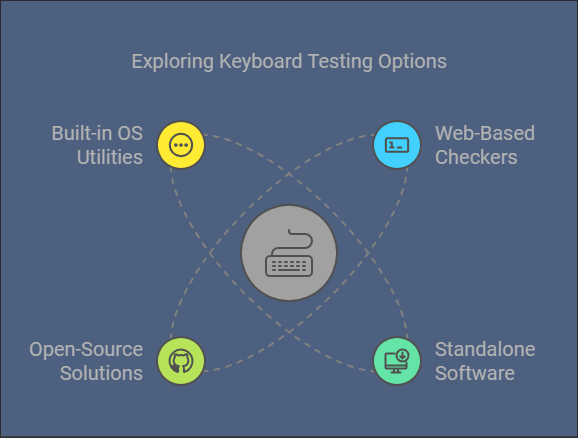
1. Web-Based Keyboard Checkers:
- Websites such as Keyboards-Tester.com offer simple online tools that don’t require downloads or installations. These tools provide basic functionality, including real-time feedback for pressed keys, and are accessible through any web browser.
- Pros: No software installation required, easy to use, accessible across platforms.
- Cons: Limited features, dependent on internet access, may lack advanced testing capabilities such as response time measurement.
2. Standalone Software:
- Downloadable programs, like PassMark KeyboardTest and Aqua’s KeyTest, provide more robust features than web-based checkers. They often support additional diagnostics, such as response time testing, ghosting detection, and scan code reporting.
- Pros: More advanced features, offline functionality, detailed reporting.
- Cons: Requires installation, may not be free, more complex interface.
3. Open-Source Solutions:
- For users who prefer free and customizable options, there are open-source keyboard checker programs available on platforms like GitHub. These programs can often be tailored to specific needs or integrated into existing workflows.
- Pros: Free, customizable, community-driven support.
- Cons: May require technical knowledge to install and configure, limited official support.
4. Built-in OS Utilities:
- Some operating systems, like Windows and macOS, have built-in tools to test keyboards. For example, Windows users can access the On-Screen Keyboard to check key functionality, while macOS users can use the Keyboard Viewer.
- Pros: No need for additional software, readily available on most systems.
- Cons: Limited functionality, doesn’t offer advanced features like ghosting tests or response time measurement.
How to Use Keyboard Checker Software
Using keyboard checker software is generally straightforward. Here’s a step-by-step guide:
- Download or Access the Tool: If using web-based keyboard checkers, simply visit the website. If using standalone software, download and install the program on your computer.
- Run the Program: Open the software or browser tool. Most keyboard checkers display a virtual keyboard on the screen.
- Press Each Key: Press every key on your physical keyboard one by one. The virtual keyboard will highlight the corresponding key in real-time, confirming that it is registering input.
- Test Multi-Key Presses (Optional): For gaming or mechanical keyboards, press multiple keys simultaneously to test for ghosting or multi-key rollover functionality.
- Analyze the Results: If a key doesn’t respond or multiple key presses aren’t registered, note the issues for further troubleshooting.
Troubleshooting Issues Detected by Keyboard Checker Software
If you identify problems using a keyboard checker, here are some potential solutions:
- Unresponsive Keys: If a key doesn’t respond, try cleaning the keyboard, as debris can block the key’s mechanism. If that doesn’t help, consider replacing the individual key switch (for mechanical keyboards) or checking the connection (especially for wireless keyboards).
- Ghosting Problems: If your keyboard doesn’t register multiple simultaneous key presses, it might be due to its rollover limitations. For better gaming performance, consider upgrading to a keyboard with higher n-key rollover support.
- Input Delays: If input lag is detected, check the connection (especially for wireless keyboards) or update your keyboard’s drivers.
Conclusion
Keyboard checker software is an invaluable tool for diagnosing and troubleshooting keyboard issues. Whether you’re experiencing unresponsive keys, stuck keys, or ghosting, these programs provide a quick and effective way to test your keyboard’s functionality. With a variety of options ranging from web-based tools to advanced standalone programs, you can easily find a solution that suits your needs. Regularly testing your keyboard helps ensure smooth operation, whether you’re typing documents, coding, or gaming.