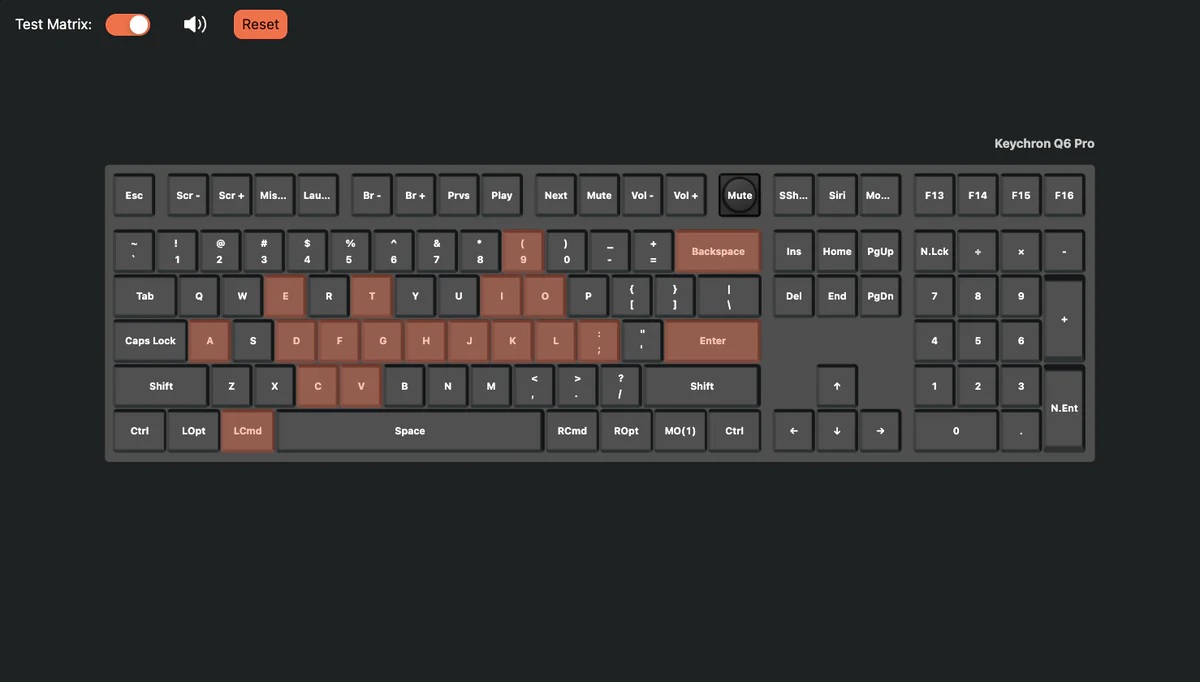
A keyboard input tester is a handy tool to check if each key on your keyboard works properly. It helps detect issues like key bounce, ghosting, and latency. To use one, simply open the tool in your web browser and press each key to see immediate feedback.
You can also test key combinations like Shift+letters and special keys like Ctrl and Alt. This is great for ensuring your keyboard is in top shape, especially for gamers and professionals. By exploring more, you’ll uncover how to troubleshoot and use advanced features to enhance your keyboard performance.
What is a Keyboard Input Tester?
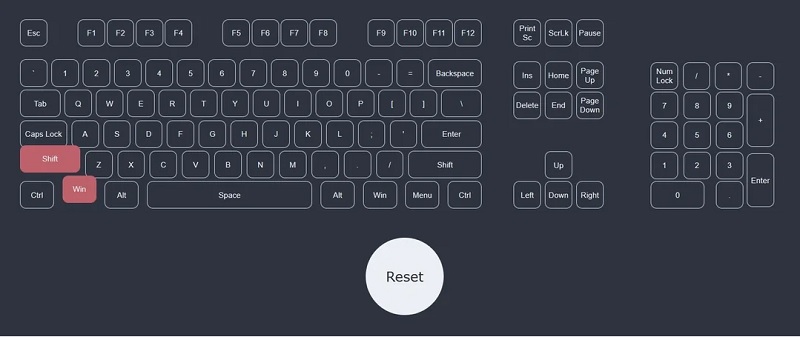
A keyboard input tester is a tool that helps you verify if each key on your keyboard is functioning correctly. It’s especially useful if you’ve noticed some keys aren’t responding as they should or if you want to check the overall health of your keyboard. By pressing each key, the tester will indicate whether it’s being registered properly, ensuring you catch any issues early.
You might wonder why you’d need such a tool. Well, keyboards can wear out over time due to dust, debris, or frequent use. A non-responsive key can be incredibly frustrating, especially if you rely on your keyboard for work or gaming. Using a keyboard input tester helps you pinpoint which keys are problematic, saving you time and effort in troubleshooting.
Another advantage of a keyboard input tester is its simplicity. You don’t need any special software or technical skills to use it. Just open the tool, and start pressing your keys. It’s that straightforward. Whether you’re using a mechanical keyboard, a membrane keyboard, or even a laptop keyboard, a tester can be a quick and effective way to ensure everything’s working as it should.
How to Use the Keyboard Input Tester?

To use the keyboard input tester, simply open the tool in your web browser and start pressing each key on your keyboard. As you press each key, the tester will display the corresponding character or action on the screen. This immediate feedback helps you verify if each key is functioning correctly.
You’ll notice that keys light up or change color when pressed. This visual indication confirms that the key’s signal is being received by your computer. If a key doesn’t respond, it might be faulty. Common keys to test include letters, numbers, function keys (F1-F12), and special keys like Shift, Ctrl, and Alt.
It’s also useful to test key combinations. For instance, hold down the Shift key and press various letters to ensure capital letters appear. Likewise, test combinations like Ctrl+C or Ctrl+V to check for proper shortcut functionality.
Troubleshooting and Advanced Features
Encountering issues with the keyboard input tester? Don’t worry, you’re not alone. Common problems include the tester not recognizing keystrokes or incorrectly displaying them. First, ensure your keyboard is properly connected and functioning.
Try plugging it into a different USB port or restarting your computer. If the problem persists, check for software conflicts or outdated drivers. Updating your keyboard driver might just fix the issue.
On the advanced side, many keyboard input testers come with features that can enhance your experience. Some testers offer key remapping, allowing you to customize your keyboard layout. This is particularly useful for gamers or programmers who need specific key arrangements. You might also find anti-ghosting features, which let you press multiple keys simultaneously without errors—a must-have for gaming enthusiasts.
If you’re a data enthusiast, advanced testers often provide detailed keypress statistics, such as actuation force and debounce time. These metrics can help you fine-tune your keyboard’s performance.
Lastly, explore any built-in macros functionality, enabling repetitive tasks to be performed with a single keypress, saving you time and effort. Take advantage of these features to get the most out of your keyboard input tester.
What Is The Purpose of a Keyboard Input Tester?
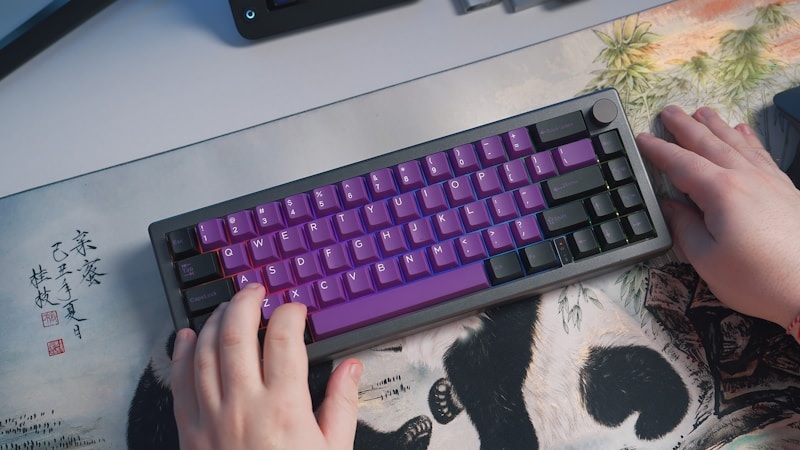
Keyboard input testers serve to evaluate and diagnose the functionality and performance of your keyboard. They’re essential tools, especially if you’re experiencing issues like missed keystrokes or unresponsive keys.
By using a keyboard input tester, you can pinpoint exactly which keys are malfunctioning and address the problem quickly. This can save you a lot of time and frustration, whether you’re a gamer, a writer, or just someone who relies heavily on their keyboard.
Here are some key aspects you can check with a keyboard input tester:
| Feature | Description | Importance |
|---|---|---|
| Key Response | Measures if each key registers a press | High |
| Key Bounce | Detects if keys are registering multiple presses | Medium |
| Ghosting | Checks multiple key presses simultaneously | High |
| Latency | Measures delay between key press and action | Medium |
| LED Function | Tests if backlit keys are functioning properly | Low |
These testers can also help you understand the overall health of your keyboard. For instance, if you notice that key bounce is becoming more frequent, it might be time to clean or even replace your keyboard. Knowing the latency can be crucial for gamers who need every millisecond to count. Thus, a keyboard input tester isn’t just a diagnostic tool; it helps maintain peak performance.
How do I Use the Keyboard Input Tester?
When you first launch the keyboard input tester, you’ll be prompted to press each key on your keyboard to check its functionality. The interface typically displays a virtual keyboard that lights up or changes color when you press each key on your physical keyboard. This visual feedback helps you confirm that every key is working as expected.
To start, press any key, and watch the corresponding key on the screen light up. Continue pressing each key one by one, including all letters, numbers, function keys, and special keys like Shift, Ctrl, and Alt. Don’t forget to test the spacebar, Enter, Tab, and arrow keys. If any key doesn’t respond or lights up intermittently, it might indicate a malfunction.
Many keyboard input testers also allow you to check for key ghosting and rollover issues. You can do this by pressing multiple keys simultaneously to see if they all register correctly. This is particularly useful for gamers who often press several keys at once.
Once you’ve tested all the keys, review the results. If some keys didn’t register, consider cleaning your keyboard or checking for hardware issues. A thorough testing can help ensure your keyboard is functioning optimally.
Frequently Asked Questions
Are Keyboard Input Testers Compatible With All Operating Systems?
When you’re wondering if they’re compatible with all operating systems, it’s essential to check the specs. Most modern tools work across Windows, macOS, and Linux. However, compatibility can vary, particularly with less common or older systems.
Always verify the software documentation or user reviews to ensure it meets your needs. It’s frustrating to discover too late that your OS isn’t supported.
Can Keyboard Input Testers Detect Key Rollover Issues?
While a smooth typing experience is ideal, key rollover issues can be a real headache. Yes, keyboard input testers can detect these problems. You’ll find that they don’t just check if keys work; they also test how many keys you can press simultaneously without errors.
By juxtaposing flawless performance with potential glitches, these tools help you ensure your keyboard’s up to the challenge.
Do Keyboard Input Testers Support Wireless Keyboards?
Yes, they do. You can definitely use keyboard input testers with wireless keyboards. As long as your wireless keyboard is connected to your device, the tester should work just fine. It doesn’t matter whether it’s Bluetooth or another type of wireless connection; the key presses will be registered. Just ensure your wireless keyboard is properly paired and functioning, and you’re good to go.
How Do Keyboard Input Testers Handle Special Keys or Macros?
Special keys and macros might seem tricky, but they’re actually quite manageable. On the one hand, you’ve got regular keys which are straightforward. On the other, special keys and macros often require more sophisticated detection.
Most testers identify these by recognizing unique key codes or sequences. So, while they handle standard keys easily, they’ve also got the smarts to process your complex inputs without a hitch.
Are There Any Security Concerns With Using a Keyboard Input Tester?
When you use a tool like this, security concerns can arise, especially if it requires internet access. Your keystrokes could be logged and sent to third parties, potentially compromising sensitive information.
Always make sure the tool is from a reputable source and avoid entering personal or confidential data. Keeping your antivirus software up to date and running regular scans can also help mitigate risks.
Conclusion
So, you’ve learned about the magical world of keyboard input testers. Who knew pressing keys could be so thrilling? Now, you’re equipped to diagnose every minuscule keyboard hiccup, like a true tech wizard.
And let’s not forget those advanced features—because who doesn’t need a keyboard with more buttons than an airplane cockpit? Go forth and test with gusto, dear reader. Your keyboard will never know what hit it. Happy typing, you digital maestro!