A keyboard key checker is an essential tool used to test the functionality of every key on your keyboard. It helps you identify issues like unresponsive keys, ghosting, and input delays that could hamper your typing or gaming experience.
We’ll explore the importance of using a keyboard key checker, how to use one, and the different types of tools available, along with troubleshooting tips to keep your keyboard in peak condition.
Why You Need a Keyboard Key Checker?
Over time, regular use of your keyboard can lead to certain keys becoming unresponsive or sticky due to wear, debris, or technical malfunctions. A keyboard key checker is the easiest way to detect such problems. Whether you’re a gamer, typist, or programmer, having a reliable and fully functional keyboard is crucial. A key checker allows you to:
- Detect Faulty Keys: Identify any unresponsive or stuck keys, which may need cleaning or replacement.
- Test for Ghosting: Verify if your keyboard supports multiple key presses (n-key rollover), especially important for gamers.
- Check for Input Lag: Ensure there are no delays between pressing a key and registering the input on your screen.
Using a key checker can save time by pinpointing problems before they affect your productivity or gaming performance.
How to Use a Keyboard Key Checker?
Keyboard key checkers are straightforward to use and are available in different forms. You can use online tools, downloadable software, or even built-in operating system utilities.
Online Key Checkers
For most users, online key checkers provide a quick and convenient solution. These tools display a virtual keyboard, and as you press keys on your physical keyboard, the corresponding keys light up on the virtual interface, indicating functionality. Online checkers are platform-independent and ideal for both casual users and gamers.
Best Online Key Checkers:
- Keyboards-Tester.com: Offers real-time feedback for each key press and tests for ghosting and key rollover.
How to Use:
- Open a web-based key checker.
- Press each key on your keyboard to see if it registers correctly.
- Check for ghosting by pressing multiple keys simultaneously.
- Note any problematic keys for further inspection.
Standalone Software
For more detailed analysis, standalone software can be downloaded and installed on your device. These programs often provide additional features, such as key response time measurements, scan code reporting, and diagnostic reports.
Popular Standalone Key Checkers:
- PassMark KeyboardTest: Offers advanced testing features, including response times, customizable layouts, and key press tracking.
- Aqua’s KeyTest: Simple, lightweight program to check if your keyboard’s keys are working properly.
Built-in System Utilities
Both Windows and macOS offer basic utilities to check keyboard functionality. While these aren’t as feature-rich as dedicated key checkers, they’re easy to access.
- Windows: Use the On-Screen Keyboard by searching for it in the Start menu. As you press keys, the corresponding virtual keys on the screen light up.
- macOS: Use the Keyboard Viewer from the input menu in the taskbar to display an on-screen keyboard.
Features to Look for in a Key Checker
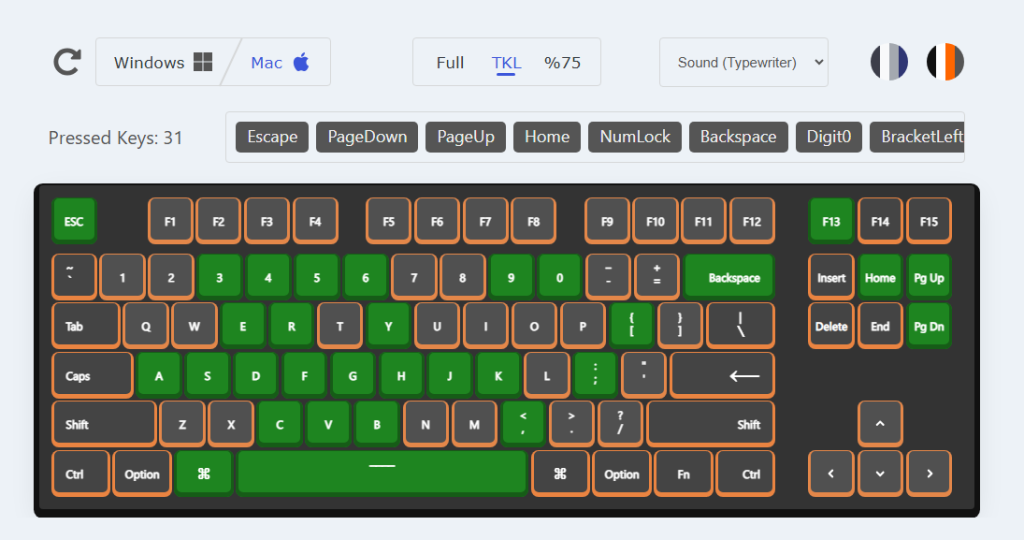
A good keyboard key checker should offer the following features:
- Real-Time Feedback: The tool should provide immediate visual feedback for each key press, showing whether the key is working or not.
- Multi-Key Press Detection: This is particularly useful for gamers who rely on multiple simultaneous key presses. The tool should test for ghosting and n-key rollover capabilities.
- Key Response Time: Some advanced tools measure how long it takes for a key press to be registered, useful for gamers and fast typists.
- Custom Layout Support: If you use a non-standard keyboard layout, such as Dvorak or AZERTY, the key checker should accommodate this layout.
Troubleshooting Common Keyboard Issues
Once you’ve identified an issue with a key checker, there are a few common troubleshooting steps you can follow:
- Clean Your Keyboard: Dust and debris can accumulate under your keys, leading to unresponsiveness. Gently clean your keyboard with compressed air or remove individual keycaps if you have a mechanical keyboard.
- Check the Connection: For wired keyboards, ensure the USB connection is secure. If using a wireless keyboard, check the battery or Bluetooth connection.
- Update Keyboard Drivers: Outdated or faulty drivers can cause issues. Go to your device manager (for Windows) or system preferences (for macOS) to update the drivers.
- Replace Faulty Keys: If a key continues to malfunction after cleaning and troubleshooting, consider replacing individual keys or, in the case of membrane keyboards, replacing the entire keyboard.
Wrapping Up!
A keyboard key checker is a valuable tool for anyone who wants to ensure their keyboard is functioning correctly. By identifying unresponsive keys, ghosting, and input delays, you can resolve issues before they interfere with your work or gaming. With various online tools, standalone software, and built-in utilities available, testing your keyboard is a simple and effective way to maintain its performance.
Remember to periodically test your keyboard to catch issues early and extend the lifespan of your device. Whether you’re a casual user, professional typist, or gamer, a reliable and functional keyboard is essential for productivity and enjoyment.