If you’re looking to optimize your gaming setup, using a mouse polling rate checker is essential. This tool measures how frequently your mouse reports its position, typically in Hertz (Hz). Higher polling rates, like 1000 Hz, enhance responsiveness and tracking accuracy, vital for competitive gaming.
To use a checker, simply download a reliable tool, connect your mouse, and observe the displayed stats during movement. You can also adjust settings using manufacturer software for best performance. Want to maximize your gaming efficiency? Keeping your mouse’s polling rate in check is the first step to improving your gameplay experience.
What Is Mouse Polling Rate?
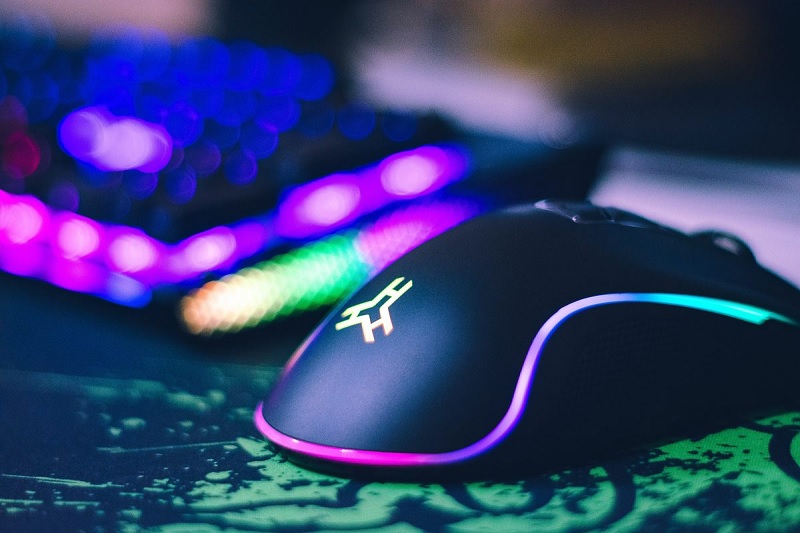
When it comes to gaming and computer use, understanding mouse polling rate is essential for optimizing your performance. The polling rate refers to how often your mouse reports its position to your computer, measured in Hertz (Hz). For example, a polling rate of 1000 Hz means your mouse updates its position 1000 times per second. This frequency is vital because it directly impacts how smoothly your movements translate on the screen.
A higher polling rate can result in more precise tracking and a more responsive experience, especially in fast-paced games where every millisecond counts. If you’re using a mouse with a lower polling rate, you might notice lag or stuttering, which can hinder your gameplay and overall computer interaction.
Polling rate isn’t the only factor that affects performance, but it plays a significant role, particularly in competitive settings. Most modern gaming mice offer adjustable polling rates, allowing you to tailor the settings to fit your style and the demands of different games. Understanding this concept will help you make informed decisions about your equipment and enhance your overall gaming experience.
What Is A Good Polling Rate?
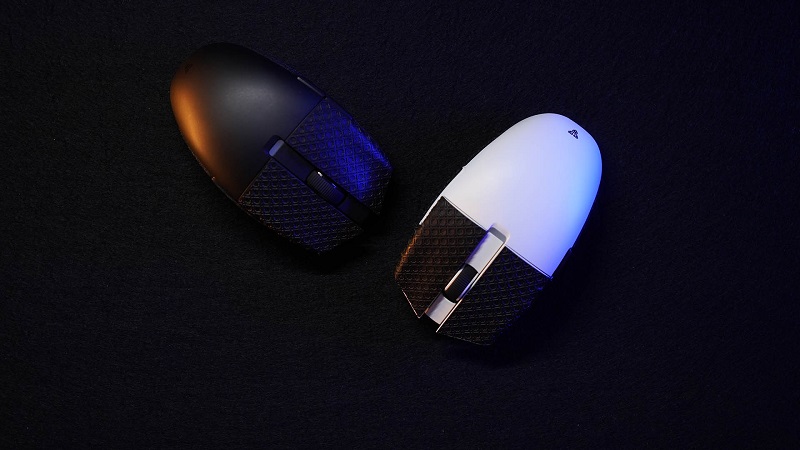
A good polling rate typically falls between 500 Hz and 1000 Hz for most users, especially gamers. A higher polling rate means your mouse reports its position more frequently. This can lead to smoother cursor movement and better responsiveness, which is vital in fast-paced gaming scenarios.
Here’s a quick comparison of different polling rates:
| Polling Rate | Description |
|---|---|
| 125 Hz | Basic usage, minimal lag |
| 250 Hz | Suitable for casual gaming |
| 500 Hz | Good for competitive gaming |
| 1000 Hz | Ideal for professional gamers |
| 2000 Hz | Rarely needed, very high |
While a polling rate of 1000 Hz is often recommended for competitive gaming, it’s important to take into account your hardware and personal preference. Some users may not notice a significant difference between 500 Hz and 1000 Hz, especially in casual usage. Ultimately, the best polling rate for you depends on your specific needs and how sensitive you are to input lag. So, test a few settings to find what feels right!
How to Use Mouse Rate Checker?
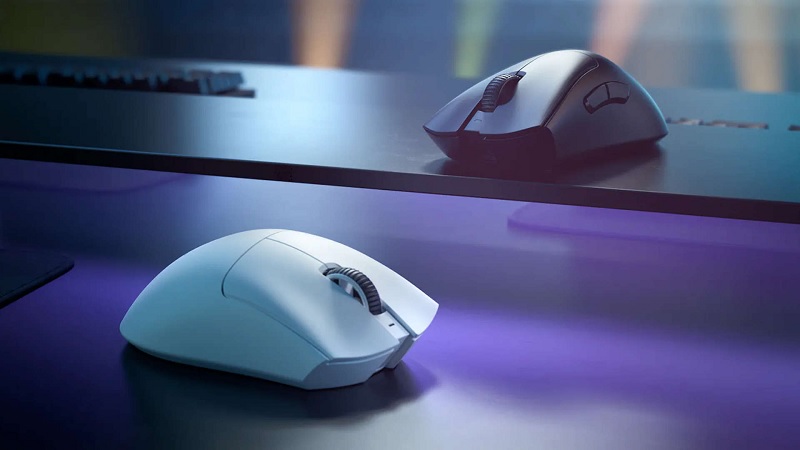
Understanding the importance of polling rates can enhance your mouse performance, but knowing how to use a mouse rate checker is equally important. To get started, first, download a reliable mouse polling rate checker tool from a reputable source. Once installed, connect your mouse to your computer and launch the application.
You’ll typically see a simple interface displaying various statistics. Move your mouse around, and the checker will record how often your mouse sends data to your computer, usually represented in Hz. A higher polling rate means more frequent updates, which can lead to smoother cursor movement.
Pay attention to the results displayed; they’ll show your current polling rate and any variations while you move the mouse. For accurate results, try different movements, like quick swipes or slow glides, and observe how the polling rate changes.
If you’re not satisfied with the performance, consider adjusting your mouse settings through its software or by changing USB ports. Remember, knowing how to check and interpret these results can help you optimize your setup for a better experience.
How Does Polling Rate Affect Gaming Performance?
When you’re gaming, the polling rate of your mouse can greatly boost responsivity and minimize input lag. Higher polling rates lead to smoother aiming, giving you a competitive edge in fast-paced scenarios. Understanding how this all works can help you optimize your setup for the best performance.
Boost Responsivity
Boosting your gaming performance often boils down to the polling rate of your mouse, which measures how often it reports its position to your computer. A higher polling rate means your mouse sends updates more frequently, leading to a smoother and more responsive gaming experience. When you’re in the heat of battle, you want every flick and movement to register immediately, and a higher polling rate can make that happen.
If you’re playing fast-paced games like first-person shooters or competitive MOBAs, you’ll notice a significant difference when you switch to a mouse with a higher polling rate. Your movements become more precise, and you’ll find it easier to track enemies or perform intricate maneuvers. While a typical mouse might operate at 125 Hz, gaming mice often support rates of 500 Hz or even 1000 Hz, giving you an edge over your opponents.
In essence, your mouse’s polling rate can enhance your overall gaming experience by making it feel more connected to your actions. So, if you’re serious about gaming, consider investing in a mouse with a higher polling rate to maximize your responsiveness and performance.
Minimizes Input Lag
In the world of gaming, input lag can be a considerable barrier to achieving peak performance, and the polling rate of your mouse plays an essential role in minimizing it. The polling rate refers to how often your mouse reports its position to your computer, measured in Hertz (Hz). A higher polling rate means more frequent updates, translating to quicker responses in-game.
When you’re engaged in fast-paced action, even milliseconds matter. If your mouse has a low polling rate, it might not relay your movements to the game quickly enough, leading to a noticeable delay in your actions. This delay can be especially frustrating in competitive settings where every second counts. By opting for a mouse with a higher polling rate—like 1000 Hz—you’ll guarantee that your movements are captured almost instantaneously.
In essence, a higher polling rate reduces the chance of input lag, allowing you to react faster to in-game events. So, if you’re serious about improving your gaming performance, consider the polling rate of your mouse as a critical factor in your setup. You’ll find that increased responsiveness can greatly enhance your overall gaming experience.
Smoother Aiming
A higher polling rate can considerably enhance your aiming precision in games. When your mouse polls at a faster rate, it sends more frequent updates to your computer about its position and movement. This means your on-screen cursor responds more accurately to your hand movements, allowing for smoother aiming. You’ll notice that when you’re trying to line up shots or track fast-moving targets, the enhanced responsiveness helps you stay on target with less effort.
With a polling rate of 1000 Hz, for example, your mouse reports its position every millisecond. This quick feedback loop can make all the difference during intense gaming sessions, especially in first-person shooters or competitive multiplayer games. You’ll find it easier to make precise adjustments, which can lead to improved overall performance.
Additionally, a higher polling rate can reduce the chances of overshooting or undershooting your aim. This control allows you to focus more on strategy and less on fighting against lag or imprecision. Ultimately, if you’re serious about gaming, investing in a mouse with a higher polling rate could give you the edge you need to outperform your opponents.
Methods to Change Mouse Polling Rate
If you want to change your mouse’s polling rate, there are a few straightforward methods you can try. You can use dedicated mouse software, adjust settings in your operating system, or even utilize specific button combinations on your mouse. Each method has its own advantages, so let’s explore them further.
Using Mouse Software
Adjusting your mouse’s polling rate can considerably enhance your gaming or productivity experience, allowing for more responsive interactions. Most gaming mice come with dedicated software that lets you easily change the polling rate. First, you’ll need to download and install the software from the manufacturer’s website, if you haven’t already.
Once installed, open the software, and look for the settings or configuration section. You should find an option labeled “Polling Rate” or something similar. Here, you can usually choose between several rates, like 125Hz, 500Hz, or 1000Hz. The higher the polling rate, the more frequently your mouse reports its position to your computer, leading to smoother cursor movement.
After selecting your desired polling rate, make sure to save your changes. Some software may require you to apply the settings before they take effect. It’s a good idea to test your mouse after making the change to verify it feels right for you. If you’re not satisfied, you can always revert to the previous setting or try a different one. With the right adjustments, you can considerably improve your overall experience.
Using Operating System Settings
While dedicated mouse software is a common way to change your polling rate, you can also utilize your operating system settings for this purpose. On Windows, start by accessing the Control Panel. Navigate to “Mouse” settings, then find the “Pointer Options” tab. Here, you won’t directly adjust the polling rate, but you can tweak other settings that impact responsiveness, like pointer speed.
If you’re using macOS, go to “System Preferences” and select “Mouse.” Similar to Windows, you won’t find a polling rate option, but adjusting the tracking speed can help improve overall performance.
For Linux users, the options may vary based on your distribution and desktop environment. Typically, you can use terminal commands to access mouse settings, though this often involves more technical steps.
While these methods don’t directly change your polling rate, they can help optimize your mouse’s performance. Keep in mind that to truly modify the polling rate, dedicated software or hardware solutions are often the best route. If you find your current settings insufficient, consider investing in a mouse that allows for direct polling rate adjustments.
Using Mouse Button Combinations
Sometimes, you can change your mouse’s polling rate using specific button combinations, which can be a handy alternative to software solutions. This method can be particularly useful if you don’t want to install additional software or if you’re in a pinch and need a quick adjustment.
To utilize this feature, first, check if your mouse supports it. Many gaming mice come equipped with this function. Typically, you’ll need to hold down a combination of buttons, often the DPI button and one of the side buttons. While the exact buttons might vary by manufacturer, most gaming mice have a dedicated DPI adjustment button.
Once you’ve identified the correct buttons, hold them down for a few seconds. Your mouse should provide some feedback, like a flashing light or a change in color, indicating that the polling rate has been adjusted.
After changing the rate, test it out in your favorite game or application to see if the difference suits your needs. If it doesn’t work as expected, refer to your mouse’s manual for specific button combinations and instructions tailored to your model. This way, you can optimize your gaming experience with minimal hassle.
Why Use Our Mouse Rate Test?

If you’re serious about gaming or graphic design, knowing the polling rate of your mouse can make all the difference. Our Mouse Rate Test is designed to give you an accurate reading of your mouse’s performance, so you can optimize your setup for the best results. By measuring how often your mouse reports its position to your computer, you can guarantee you’re getting the responsiveness you need during intense gameplay or intricate design work.
Using our test is straightforward and user-friendly. You won’t need any technical expertise to interpret the results. Just plug in your mouse, run the test, and you’ll see your polling rate displayed instantly. This information helps you identify whether your current mouse meets your performance expectations or if it’s time to upgrade.
Additionally, our tool offers insights into how different settings or configurations might affect your mouse’s performance. Knowing these details enables you to make informed choices about your hardware, helping you enhance your overall experience. So, when it comes to maximizing your productivity or gaming edge, using our Mouse Rate Test is a smart move you won’t want to miss.
Is A Higher Polling Rate Always Better?
A higher polling rate can indeed improve your mouse’s responsiveness, but it doesn’t always guarantee better performance in every scenario. While a mouse with a polling rate of 1000 Hz can report its position every millisecond, this might not be necessary for everyone. If you’re a casual user who primarily browses the web or uses productivity software, a 125 Hz or 500 Hz polling rate is often sufficient.
Additionally, increasing the polling rate can lead to higher CPU usage, which may not be ideal for all setups. If you’re gaming or doing graphic design, a higher polling rate can enhance your experience, but the difference might be negligible for less intensive tasks.
Moreover, your mouse’s sensor quality and your gameplay style can also play significant roles. If you’re playing fast-paced shooters, a higher polling rate could provide a slight edge. However, if you’re not comfortable with the sensitivity, it can actually hinder your performance.
Ultimately, it’s about finding the right balance for your needs. Test various settings to see what feels best for you, rather than simply opting for the highest polling rate available.
Frequently Asked Questions
Can Polling Rate Affect Battery Life in Wireless Mice?
Yes, polling rate can definitely affect battery life in wireless mice. When you set a higher polling rate, your mouse communicates more frequently with your computer, which can drain the battery faster. If you’re using your mouse for extended periods, you might notice a difference in battery longevity. Lowering the polling rate can help you conserve battery life, so it’s a good idea to find a balance between performance and efficiency.
How Do I Interpret the Results From a Polling Rate Check?
Imagine your friend boasting about their new gaming mouse, claiming it has a 1000Hz polling rate. To interpret the results from a polling rate check, you’ll want to look at the Hz value displayed. A higher number means your mouse is sending data to your computer more frequently, resulting in smoother and more responsive movement. If the rate is lower than expected, it might indicate a problem with your mouse or its connection.
What Devices Can I Use With a Mouse Polling Rate Checker?
You can use various devices with a polling rate checker, including desktop computers, laptops, and gaming consoles. Most USB mice will work seamlessly, allowing you to test their performance. If you’re using a wireless mouse, make sure it’s charged and connected properly. Some mobile devices may not be compatible, so it’s best to stick with traditional computing devices for accurate results. Just plug in, run the checker, and see what you get!
Is There a Difference Between Gaming and Regular Mouse Polling Rates?
Yes, there’s a difference between gaming and regular mouse polling rates. Gaming mice typically have higher polling rates, often around 1000 Hz, which means they send data to your computer every millisecond. This results in smoother and more responsive movements, essential for competitive gaming. Regular mice usually operate at lower rates, like 125 Hz, which is sufficient for everyday tasks but can lag behind in fast-paced gaming scenarios. So, choosing the right mouse matters!
Can I Change Polling Rates for Different Applications or Games?
Did you know that a mouse polling rate of 1000Hz can send data to your computer every millisecond? You can indeed change polling rates for different applications or games, but it often requires specific software. Many gaming mice allow you to customize settings through their driver software, letting you switch between profiles quickly. This way, you can optimize your mouse’s responsiveness based on the game or task at hand, enhancing your overall experience.
Conclusion
In the end, understanding your mouse’s polling rate can really elevate your gaming experience. You might find that adjusting it not only enhances your precision but also aligns with your unique play style. Coincidentally, the right settings could make all the difference in those nail-biting moments during a match. So, whether it’s a casual game night or a competitive showdown, knowing how to fine-tune your setup can lead to those unexpected wins you never saw coming.